What is my Computers Maximum CPU Temperature?
by Abhishek Srivastava
A lot of users frequently ask if their computers are running too hot and want to know their maximum temperature for their CPU is. This article will show you how to monitor your processors temperature and tell you the maximum CPU temperature your PC should be running at.
First of all, you need a CPU temperature monitoring program in order to measure what your current CPU temperature is. There are many good processor monitoring applications out there and it is most likely that there is one on the CD which came with your motherboard. If there isn’t one on the CD (or you have since lost it) I recommend Motherboard Monitor which is freeware and can be found HERE.
First of all, you need a CPU temperature monitoring program in order to measure what your current CPU temperature is. There are many good processor monitoring applications out there and it is most likely that there is one on the CD which came with your motherboard. If there isn’t one on the CD (or you have since lost it) I recommend Motherboard Monitor which is freeware and can be found HERE.
Motherboard Monitor is useful because not only you can make it constantly show you the temperature in real time on your system tray, but you can set it up so that if the maximum temperature is reached an alarm will go off.

An example of Motherboard Monitors temperature monitoring in the systemtray.
Once you are in BIOS setup there will be an option called “Hardware Monitor” or “PC Health” section (mine was found under “Power > Hardware Monitor”).
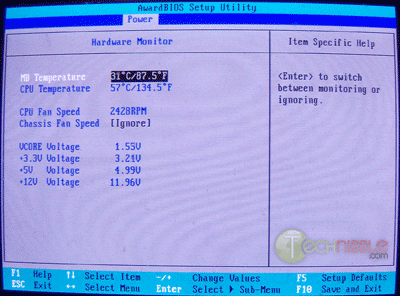
However this isn’t a very good method to measure your computer temperature because when your computer is in the BIOS your computer is doing nothing and therefore not generating the heat that is caused during normal computer use.
Ok, I know the temperature now, Is my CPU too hot?
Once you know what your computer temperature is you should consult the chart below to determine the maximum temperature allowed for your CPU type.
Note: If you dont know what your CPU type is you can use a tool like Everest Free to find out.
| CPU |
Max Temperature
|
| AMD Althon, Althon Opteron, Duron & Sempron Series | |
| AMD Athlon (socket) upto 1Ghz | 90°C |
| AMD Athlon (slot) all speeds | 70°C |
| AMD Athlon Thunderbird 1.1Ghz+ | 95°C |
| AMD Athlon MP 1.33Ghz+ | 95°C |
| AMD Athlon XP 1.33Ghz+ | 90°C |
| AMD Athlon XP T-Bred upto 2100+ | 90°C |
| AMD Athlon XP T-Bred over 2100+ | 85°C |
| AMD Athlon XP Barton | 85°C |
| AMD Duron up to 1Ghz | 90°C |
| AMD Duron 1Ghz+ | 90°C |
| AMD Duron Applebred | 85°C |
| AMD Opteron | 65 – 71°C |
| AMD Athlon 64 | 70°C |
| AMD Athlon 64 (Socket 939, 1.4 volts) | 65°C |
| AMD Athlon 64 FX | 70°C |
| AMD Athlon 64 X2 | 71°C |
| AMD Sempron (T-bred/Barton core) | 90°C |
| AMD Sempron (Paris core) | 70°C |
| AMD Mobile Sempron | 95°C |
| AMD K6 Series | |
| AMD K6/K6-2/K6-III (All except below) | 70°C |
| AMD K6-2/K6-III (model number ending in X) | 65°C |
| AMD K6-2+/K6-III+ | 85°C |
| Intel Pentium III Series | |
| Pentium III Slot 1 500-866Mhz | 80°C |
| Pentium III Slot and socket 933Mhz | 75°C |
| Pentium III Slot 1 1Ghz | 60 – 70°C |
| Pentium III Slot 1 1.13Ghz | 62°C |
| Intel Celeron Series | |
| Intel Celeron 266-433Mhz | 85°C |
| Intel Celeron 466-533Mhz | 70°C |
| Intel Celeron 566-600Mhz (Coppermine) | 90°C |
| Intel Celeron 633-667Mhz | 82°C |
| Intel Celeron 700 – 850Mhz | 80°C |
| Intel Celeron 900Mhz – 1.6Ghz | 69 – 70°C |
| Intel Celeron 1.7Ghz and Higher | 67 – 77°C |
| Intel Pentium II | |
| Intel Pentium II (First Generation “Klamath”) | 72 – 75°C |
| Intel Pentium II (Second Generation, 266-333Mhz) | 65°C |
| Intel Pentium II (350 – 400Mhz) | 75°C |
| Intel Pentium II (450Mhz) | 70°C |
| Intel Pentium 4, Pentium M (notebooks) | |
| Intel Pentium 4 | 64 – 78°C |
| There are no specific stats for Pentium 4 CPU’s as P4′s have an ability to slow themselves down when they are getting too hot and thus, in theory they should never be able to burn themselves out. To get specifics consult Intel’s specifications for your particular model. | |
| Intel Pentium M (notebooks) | 100°C |
| Intel Pentium D (dual core) | |
| Intel Pentium D 820 (2.8Ghz) | 63°C |
| Intel Pentium D 830 & 840 (3.0 – 3.2Ghz) | 69.8°C |
| Intel Pentium Pro | |
| Intel Pentium Pro. 256 or 512K L2 Cache | 85°C |
| Intel Pentium Pro. 1MB L2 Cache | 80°C |
Warning: This is a self help guide. These are maximums and your system should be at least a good 20C- 30C below these numbers. Technibble and its owners can not be held responsible for the problems that may occur by using this information.


Comments
Post a Comment